
Computer
To download the app, go to https://woku.app from the Google Chrome or Microsoft Edge browser. Then, click the “Sign in” button. In the address bar, in the top right corner, you will see the “Install” icon in Google Chrome or the “Apps” icon in Microsoft Edge, which lets you install the app.
”Install” icon in Google Chrome

”Apps” icon in Microsoft Edge
Click it, and when the message appears, simply press “Install”.
And that is it! You will now have woku on your computer to use whenever you want.
Phone
To download the app, go to https://woku.app from your browser. If you have an iPhone, use Safari, and if you use an Android device, open Google Chrome. Once there, click the “Sign in” button.For Apple
From Safari, press the “Share” icon in the menu, right below the navigation bar.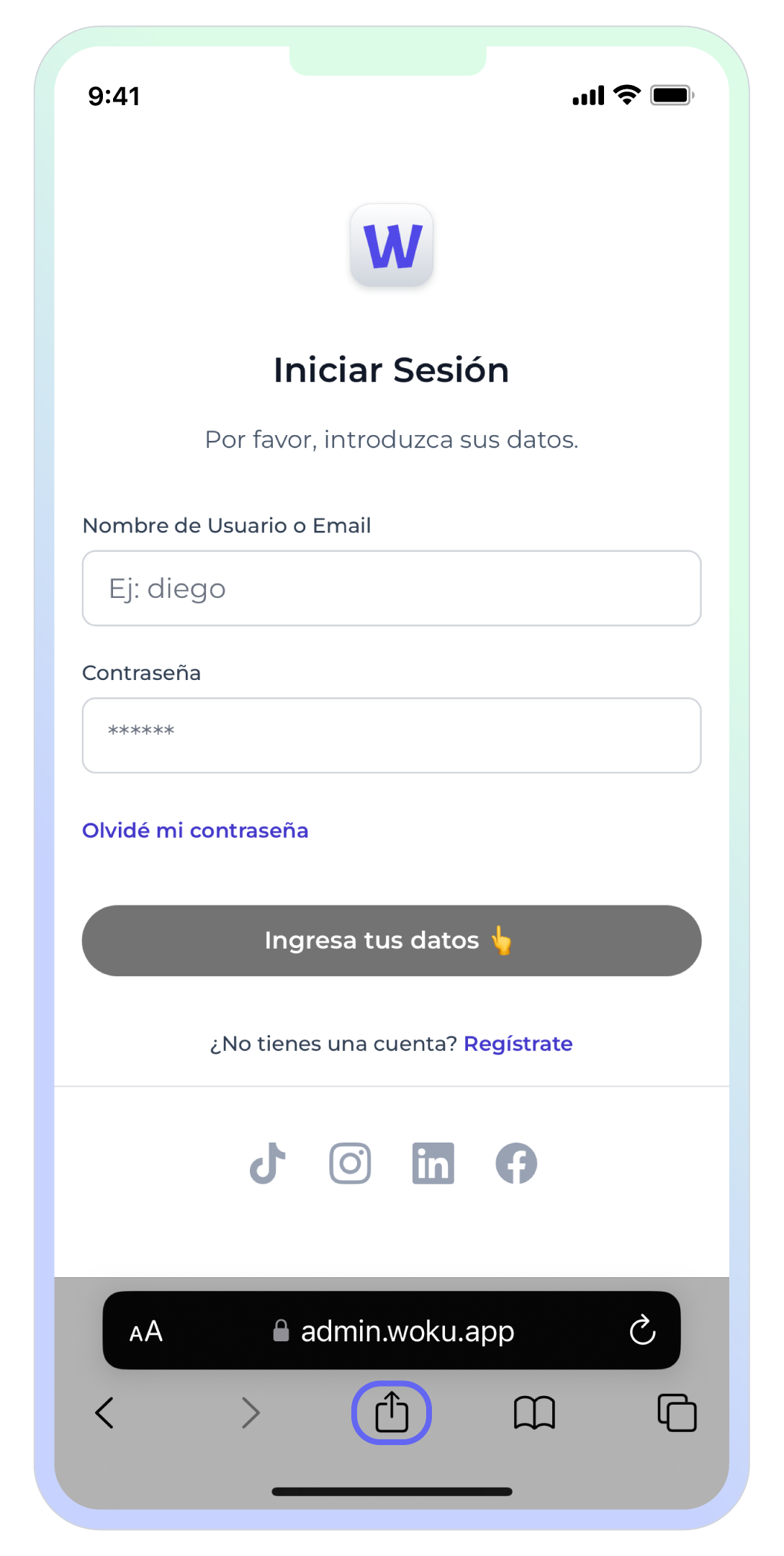
woku sign-in screen on an iPhone using Safari
Then, scroll down through the options until you find “Add to Home Screen”.
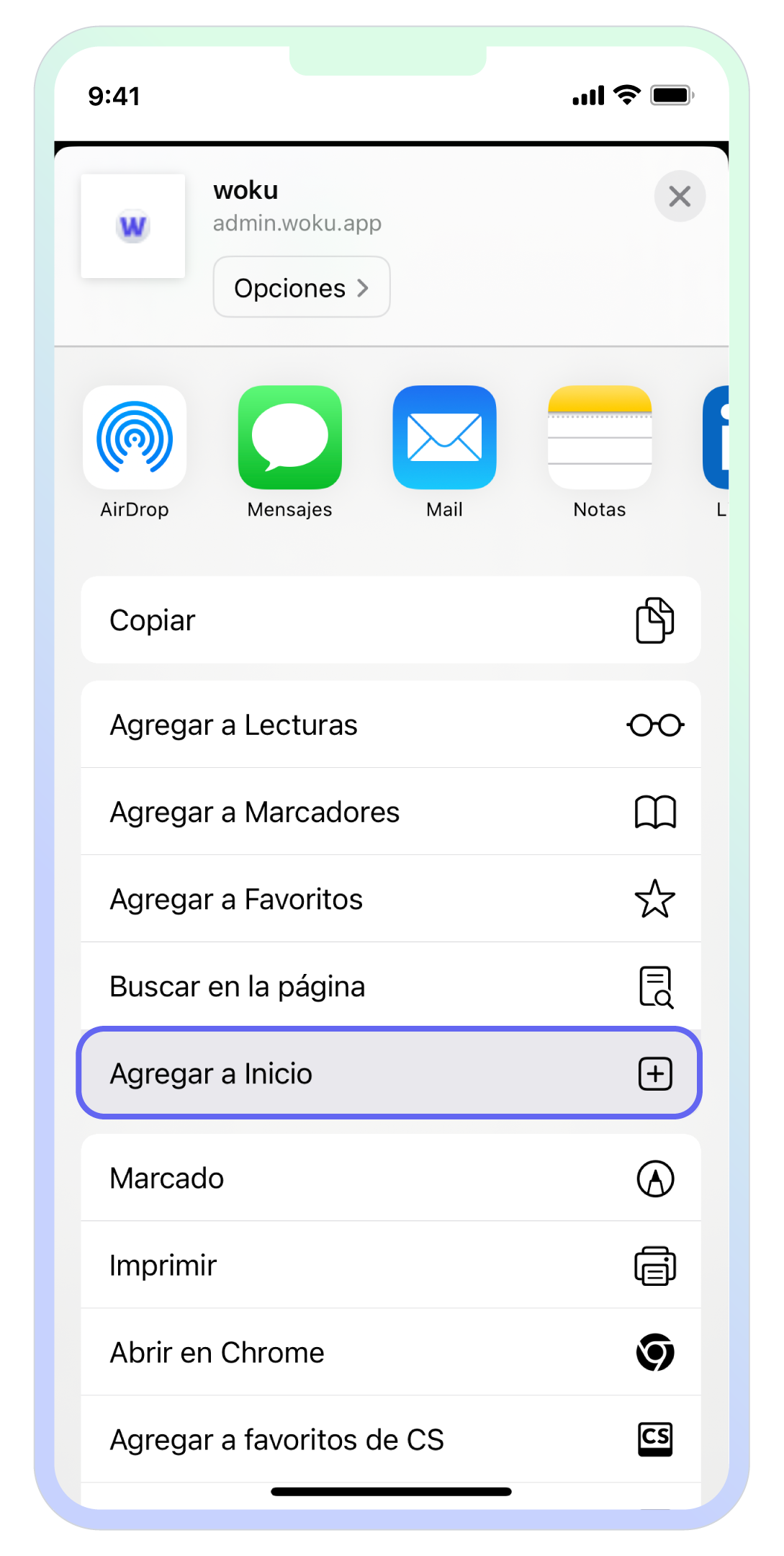
”Add to Home Screen” button to install the web app on the iPhone
Finally, click “Add”. Done! You now have woku installed on your phone.
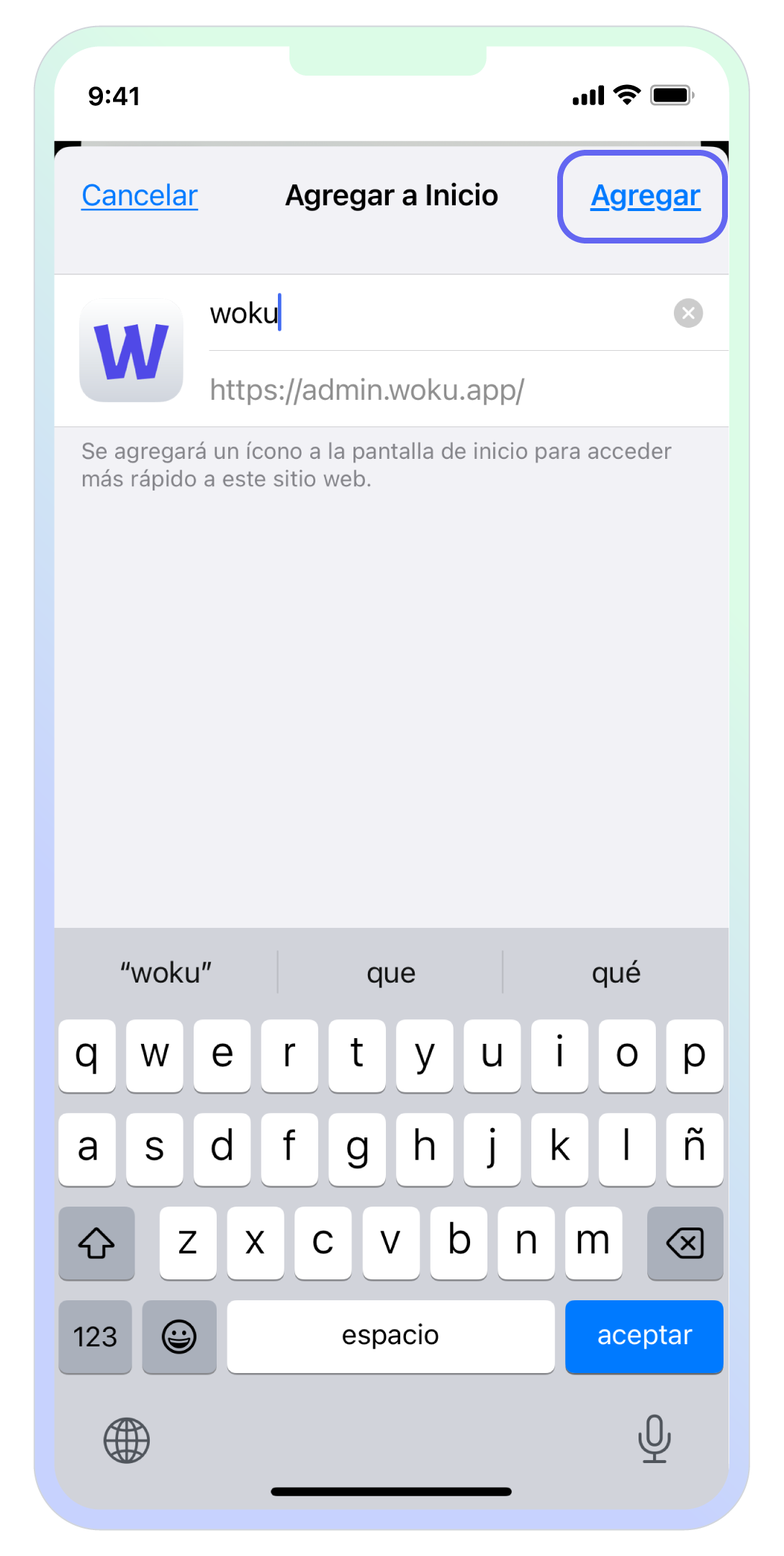
”Add” button to add the woku app to the home screen on iPhone
For Android
From Google Chrome, press the “Options menu” icon in the menu, on the address bar.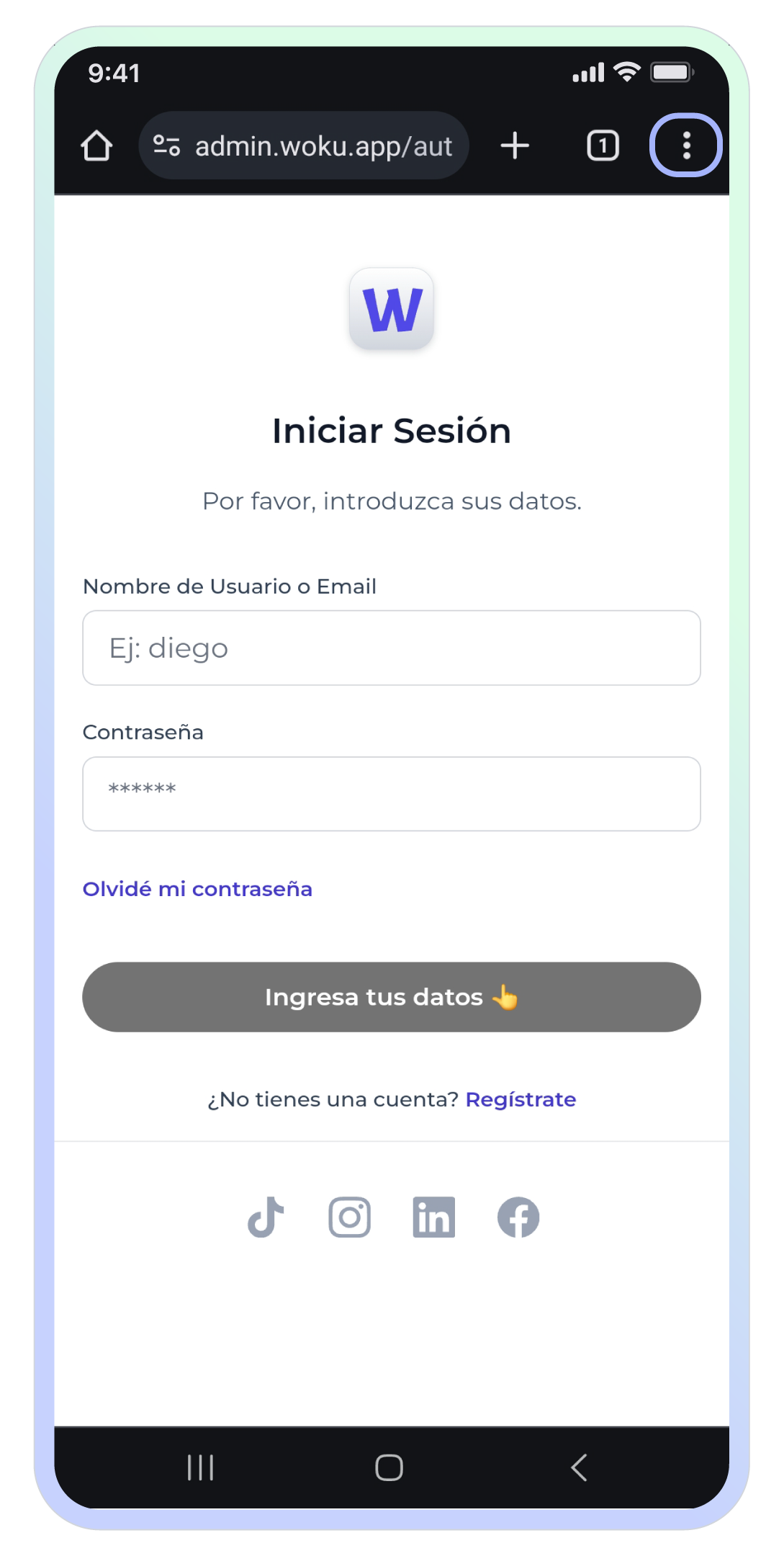
woku sign-in interface from an Android device with the Google Chrome options menu highlighted
Once in the menu, scroll down and select the “Add to Home screen” option.
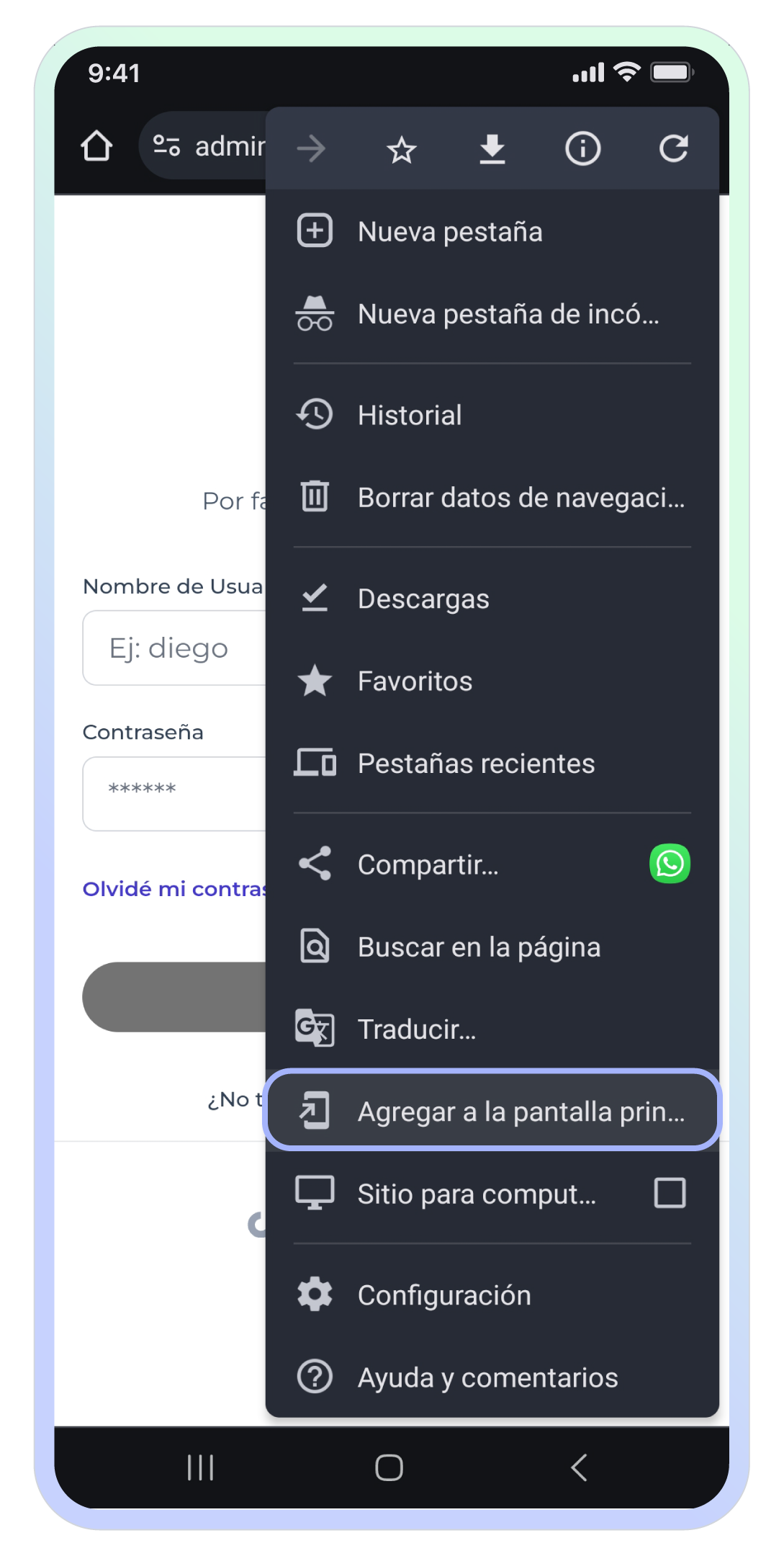
”Add to Home screen” option highlighted in the Google Chrome options menu on Android
Then, in the bottom sheet, select the “Install” option.
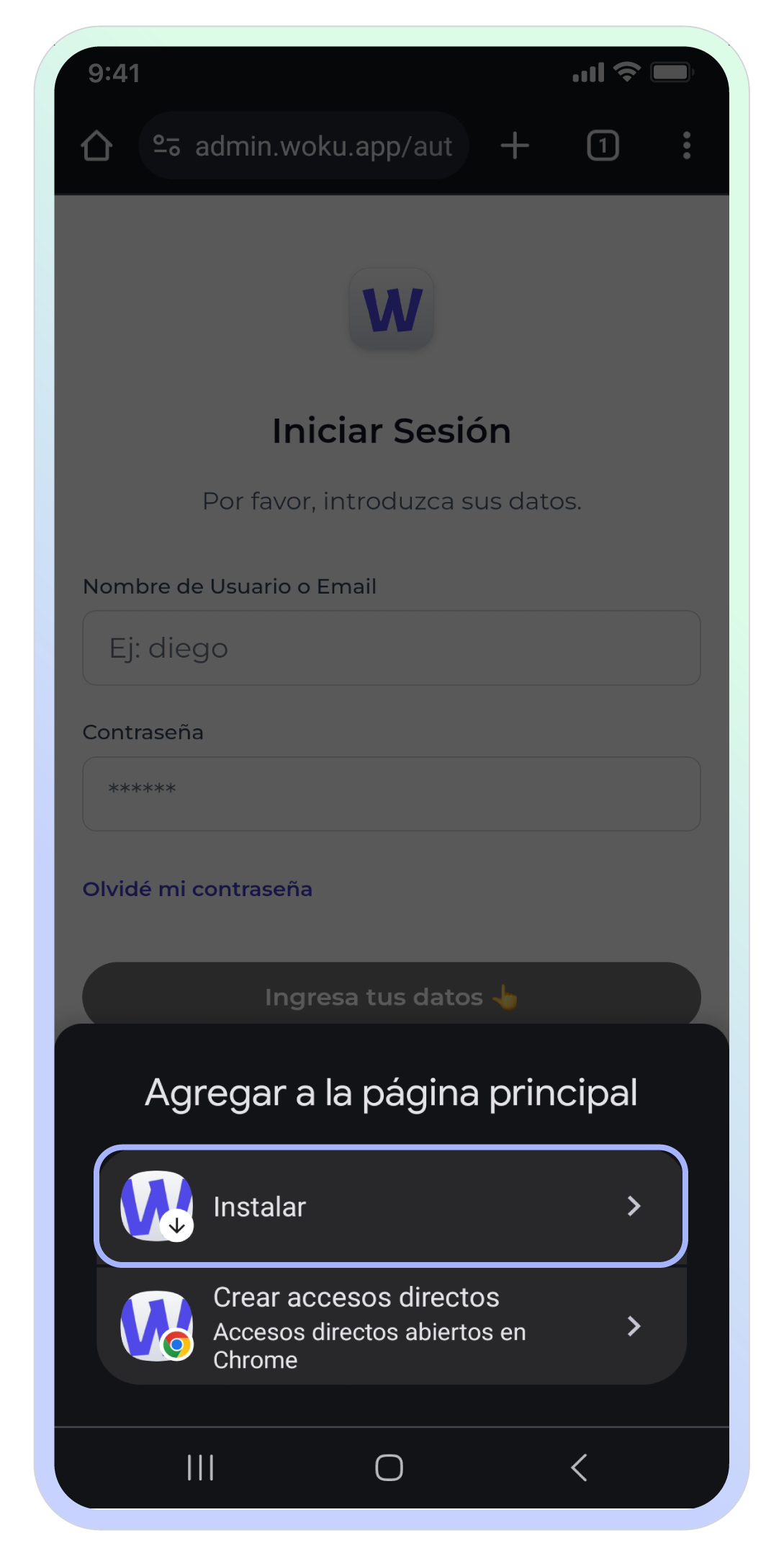
”Install” option selected to add woku to the home screen on Android
Finally, in the modal, select “Install”.
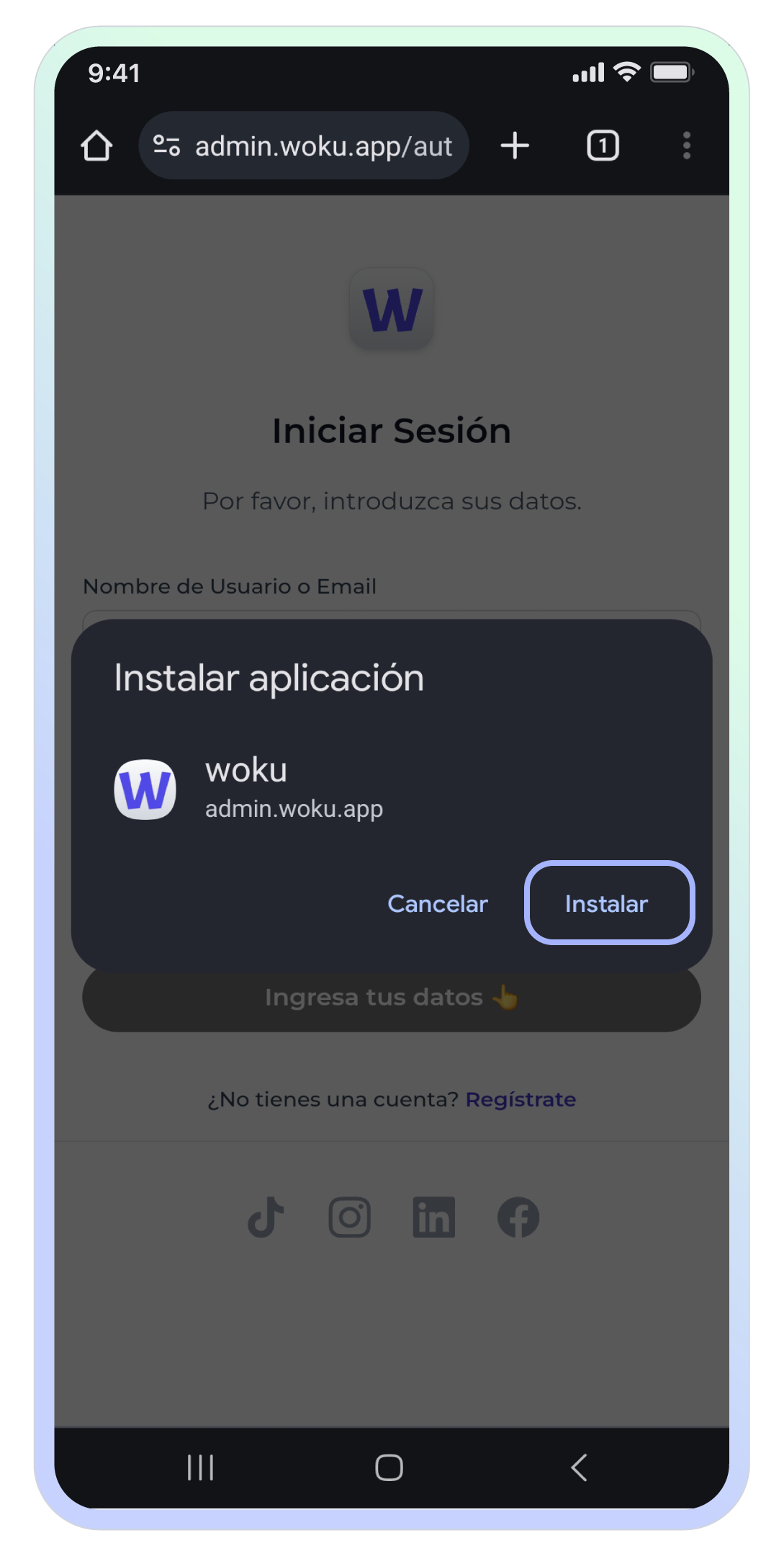
woku installation modal on Android from Google Chrome