
woku
A woku captures a visual opinion about a moment: 1 to 5 stars plus a text or audio review. Create. In the main menu press ”+ Create woku”, choose an image or video that represents what you want to evaluate and give it a clear name.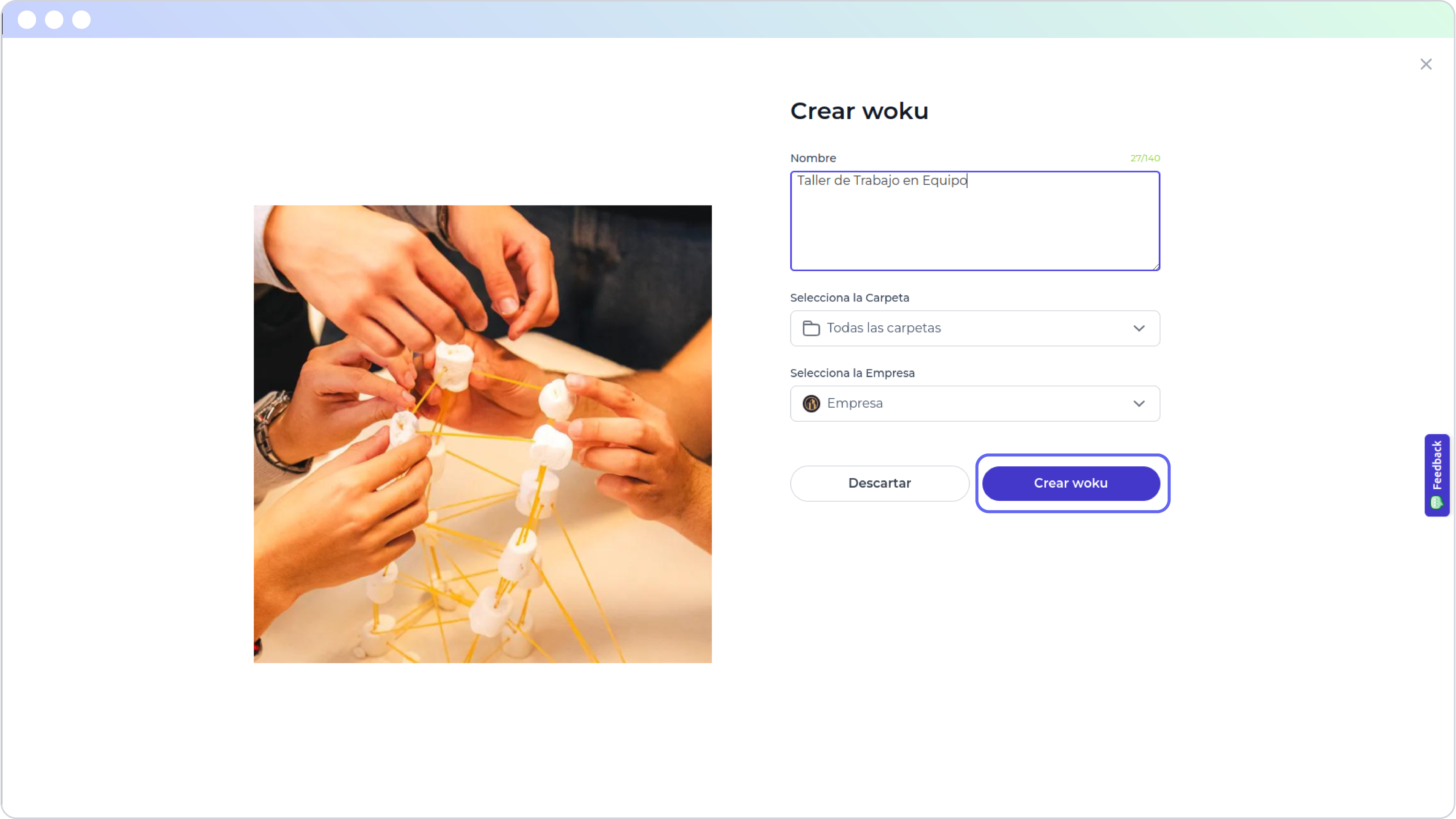
woku creation view.
Share. Enter the woku and press “Share”: QR code, link or bulk email send.
Respond. The customer sees the image and the name, rates from 1 to 5 stars and leaves an optional review in text or audio, identified or anonymous.
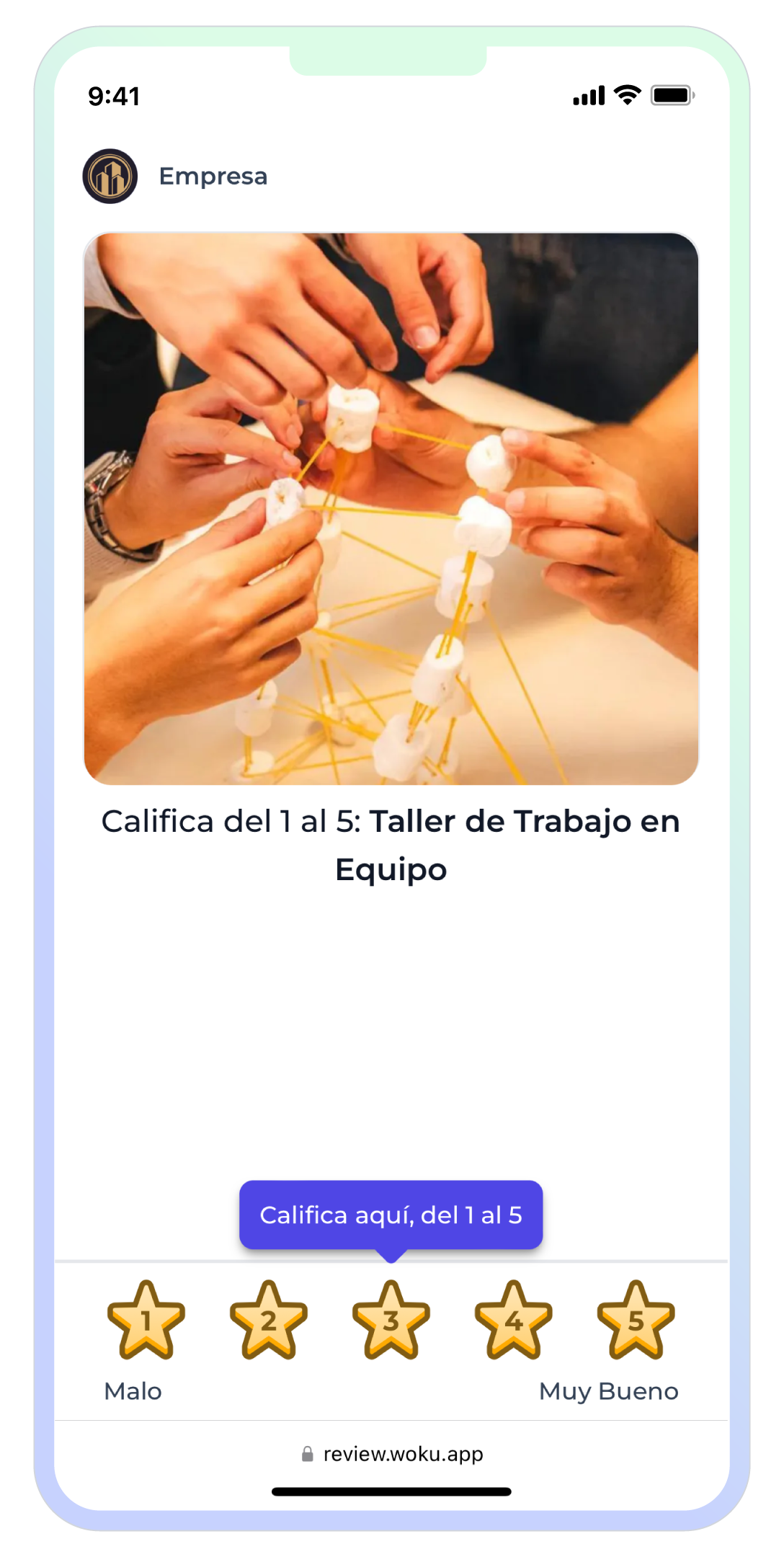
Rating a woku on the phone.
CSAT
A CSAT measures satisfaction on a 1 to 5 scale after a key moment, such as the purchase. Create. Enter the CSAT section and press ”+ Create CSAT”. Define:- Name: identifies the tool. For example, “Post-purchase CSAT”.
- Subject to evaluate: complete the fixed question “How satisfied are you with {subject}?”, for example “your purchase”.
- Audience: who it is aimed at.
CES
A CES measures effort: how easy it was for the customer to achieve something. It is the twin of CSAT, with the same 1 to 5 scale and the same metrics. Ideal for support and after-sales. Create. Enter the CES section and press ”+ Create CES”. Define:- Name: for example, “Support service CES”.
- Action to evaluate: complete the fixed question “How easy was it to ?”, for example “resolve your issue”.
- Audience.
NPS
An NPS measures recommendation on a 0 to 10 scale. Create. Enter the NPS section and press ”+ Create NPS”. Define:- Name: for example, “Q1 post-event NPS”.
- Message: the question the customer will see, for example “How likely are you to recommend this event to a colleague?”.
- Audience.
Flow
A Flow chains several wokus in a single session, with an optional NPS at the start. It is built from wokus that already exist: if you do not have them yet, create them first. Create. Enter the Flows section and press ”+ Create Flow”. Define:- Name: for example, “Q1 event journey”.
- Optional NPS: choose an NPS tool to start the journey, or leave it without NPS.
- Wokus: select one or more in the order in which they will appear.
Forms
A Form captures structured data (text, number, date, email, phone, selection) instead of an opinion. Create. Enter the Forms section and press ”+ Create Form”. Define:- Name: for example, “Excel Training Registration”.
- Fields: add them with their type, label, required status and options when applicable.
- Settings: anonymous responses, identification by email or phone, and whether it is limited to one response per person.