> ## Documentation Index
> Fetch the complete documentation index at: https://woku.app/docs/llms.txt
> Use this file to discover all available pages before exploring further.

# Installation

> Install woku as a progressive web app on your computer or phone

woku is a progressive web app, which means you can download it directly from your browser, both on your computer and on your phone. That way, you will always have it at hand and can access it whenever you need it.

## Computer

To download the app, go to [https://woku.app](https://woku.app/) from the Google Chrome or Microsoft Edge browser. Then, click the **"Sign in"** button.

In the address bar, in the top right corner, you will see the "Install" icon in Google Chrome or the "Apps" icon in Microsoft Edge, which lets you install the app.

<img src="https://mintcdn.com/woku/4zVAR1XAPSMsEpMD/images/chrome-install-icon.png?fit=max&auto=format&n=4zVAR1XAPSMsEpMD&q=85&s=1976e2375ac79e0a651977f6bea191e8" alt="Partial view of the address bar in Google Chrome, showing options such as the button to install web apps (highlighted), the translation icon, the add to favorites button, the user profile icon, and the dropdown menu." className="mx-auto" width="1020" height="94" data-path="images/chrome-install-icon.png" />

<div style={{ textAlign: 'center', fontSize: '0.875rem', color: '#6b7280', marginBottom: '1.5rem' }}><strong>"Install" icon in Google Chrome</strong></div>

<img src="https://mintcdn.com/woku/4zVAR1XAPSMsEpMD/images/edge-install-icon.png?fit=max&auto=format&n=4zVAR1XAPSMsEpMD&q=85&s=43a8f7166884c0a9de4ad3193b5fa578" alt="Partial view of the address bar in the Microsoft Edge browser. Several options are shown: the 'Install' icon for web apps (highlighted in a blue circle), the page translation icon, the add to favorites icon, a tabs button, the button to view several tabs at once, a clock icon with history or collections, the user profile icon, and the dropdown menu with more options, along with the Microsoft Edge logo." className="mx-auto" width="1020" height="94" data-path="images/edge-install-icon.png" />

<div style={{ textAlign: 'center', fontSize: '0.875rem', color: '#6b7280' }}><strong>"Apps" icon in Microsoft Edge</strong></div>

Click it, and when the message appears, simply press **"Install"**.

And that is it! You will now have woku on your computer to use whenever you want.

## Phone

To download the app, go to [https://woku.app](https://woku.app/) from your browser. If you have an iPhone, use Safari, and if you use an Android device, open Google Chrome. Once there, click the **"Sign in"** button.

### For Apple

From Safari, press the "Share" icon in the menu, right below the navigation bar.
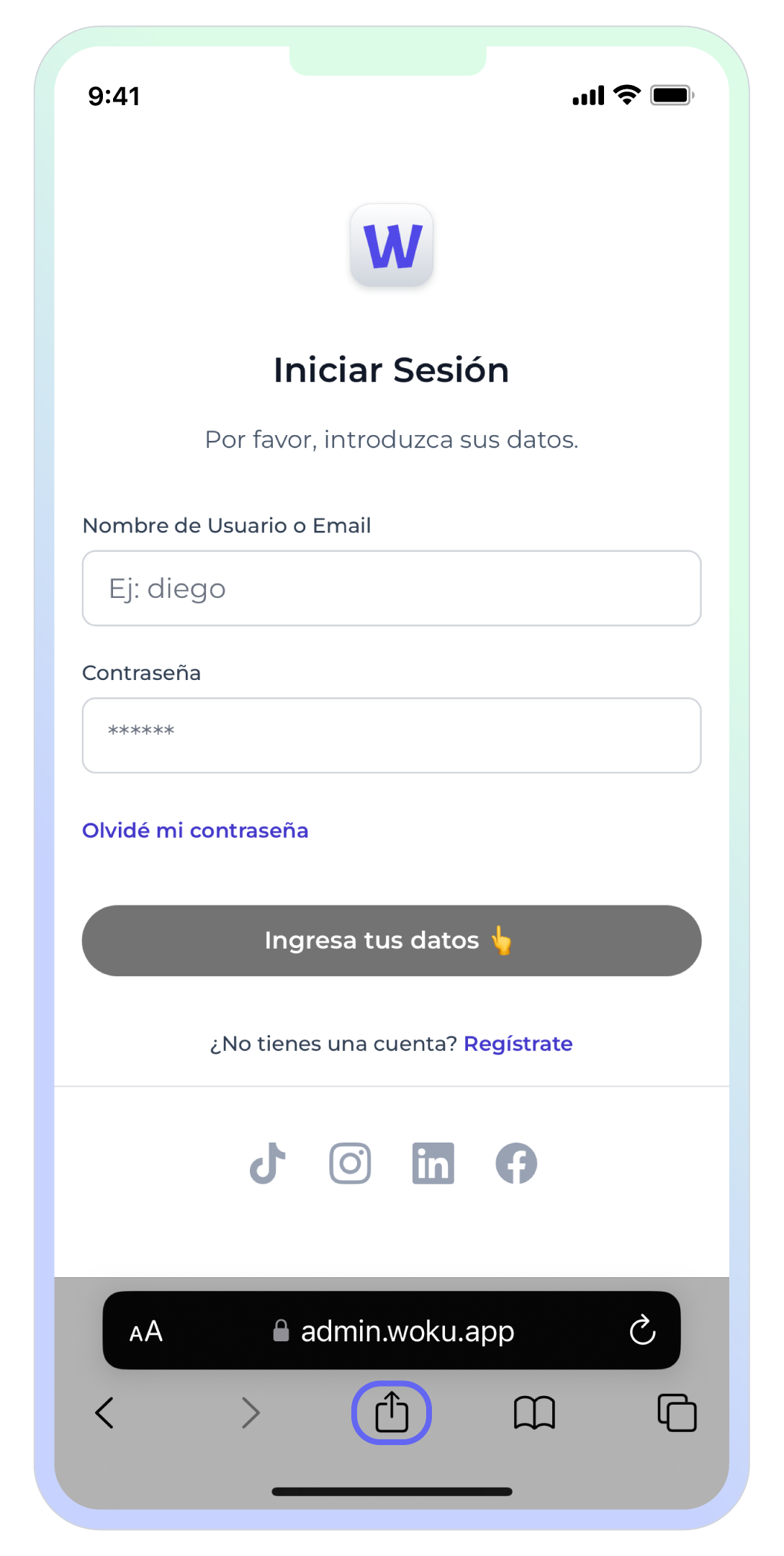
<img style={{ width: 'auto', height: '400px'}} src="https://mintcdn.com/woku/4zVAR1XAPSMsEpMD/images/apple-safari-login.png?fit=max&auto=format&n=4zVAR1XAPSMsEpMD&q=85&s=7e1107940fa8ca0025edaa10428e02b0" alt="woku sign-in screen interface on an iPhone device, viewed in the Safari browser. The address bar shows the URL 'admin.woku.app'. The sign-in form asks for the username or email and the password, with a button to recover the password if forgotten. The main button reads 'Enter your details' accompanied by a pointing finger icon. Below it, the option to sign up is offered if you do not have an account. At the bottom, social media icons such as TikTok, Instagram, LinkedIn, and Facebook are shown. In addition, the icon to share the page is highlighted in the Safari toolbar." className="mx-auto" width="1089" height="2160" data-path="images/apple-safari-login.png" />

<div style={{ textAlign: 'center', fontSize: '0.875rem', color: '#6b7280' }}><strong>woku sign-in screen on an iPhone using Safari</strong></div>

Then, scroll down through the options until you find **"Add to Home Screen"**.
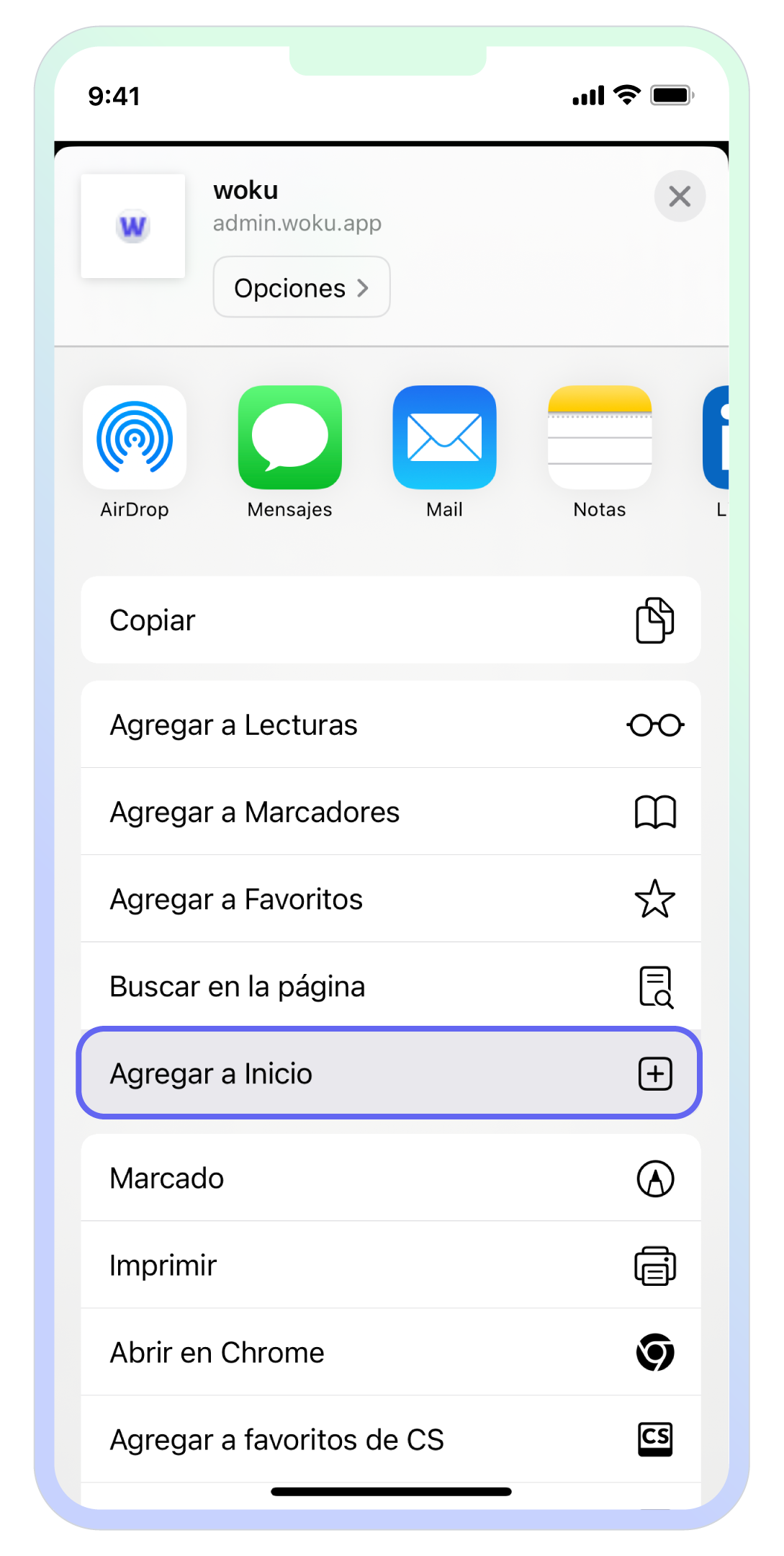
<img style={{ width: 'auto', height: '400px'}} src="https://mintcdn.com/woku/4zVAR1XAPSMsEpMD/images/apple-add-to-home.png?fit=max&auto=format&n=4zVAR1XAPSMsEpMD&q=85&s=9449e687bb20efef2ff2fdff2852f596" alt="'Add to Home Screen' button to install the web app on the iPhone" className="mx-auto" width="1089" height="2160" data-path="images/apple-add-to-home.png" />

<div style={{ textAlign: 'center', fontSize: '0.875rem', color: '#6b7280' }}><strong>"Add to Home Screen" button to install the web app on the iPhone</strong></div>

Finally, click **"Add"**. Done! You now have woku installed on your phone.
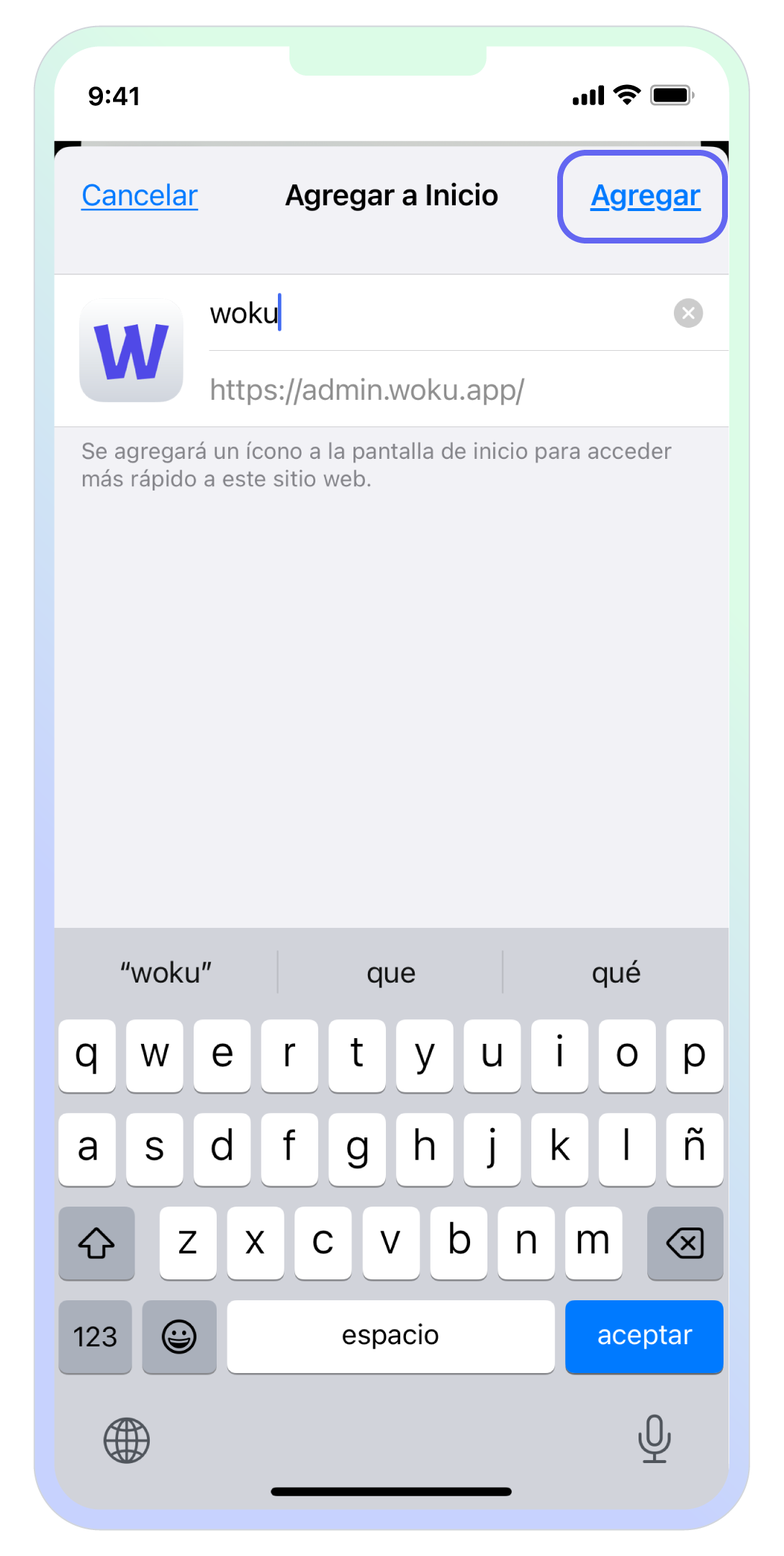
<img style={{ width: 'auto', height: '400px'}} src="https://mintcdn.com/woku/4zVAR1XAPSMsEpMD/images/apple-confirm-add.png?fit=max&auto=format&n=4zVAR1XAPSMsEpMD&q=85&s=32ee67b0b9fb91a34984c19383a5dab3" alt="Screen on an iPhone showing the option to add woku to the home screen from Safari. The user can customize the name of the icon that will appear on their home screen, in this case 'woku', with the address 'https://admin.woku.app'. The 'Add' button is highlighted in the top right corner, ready to complete the action." className="mx-auto" width="1089" height="2160" data-path="images/apple-confirm-add.png" />

<div style={{ textAlign: 'center', fontSize: '0.875rem', color: '#6b7280' }}><strong>"Add" button to add the woku app to the home screen on iPhone</strong></div>

### For Android

From Google Chrome, press the "Options menu" icon in the menu, on the address bar.
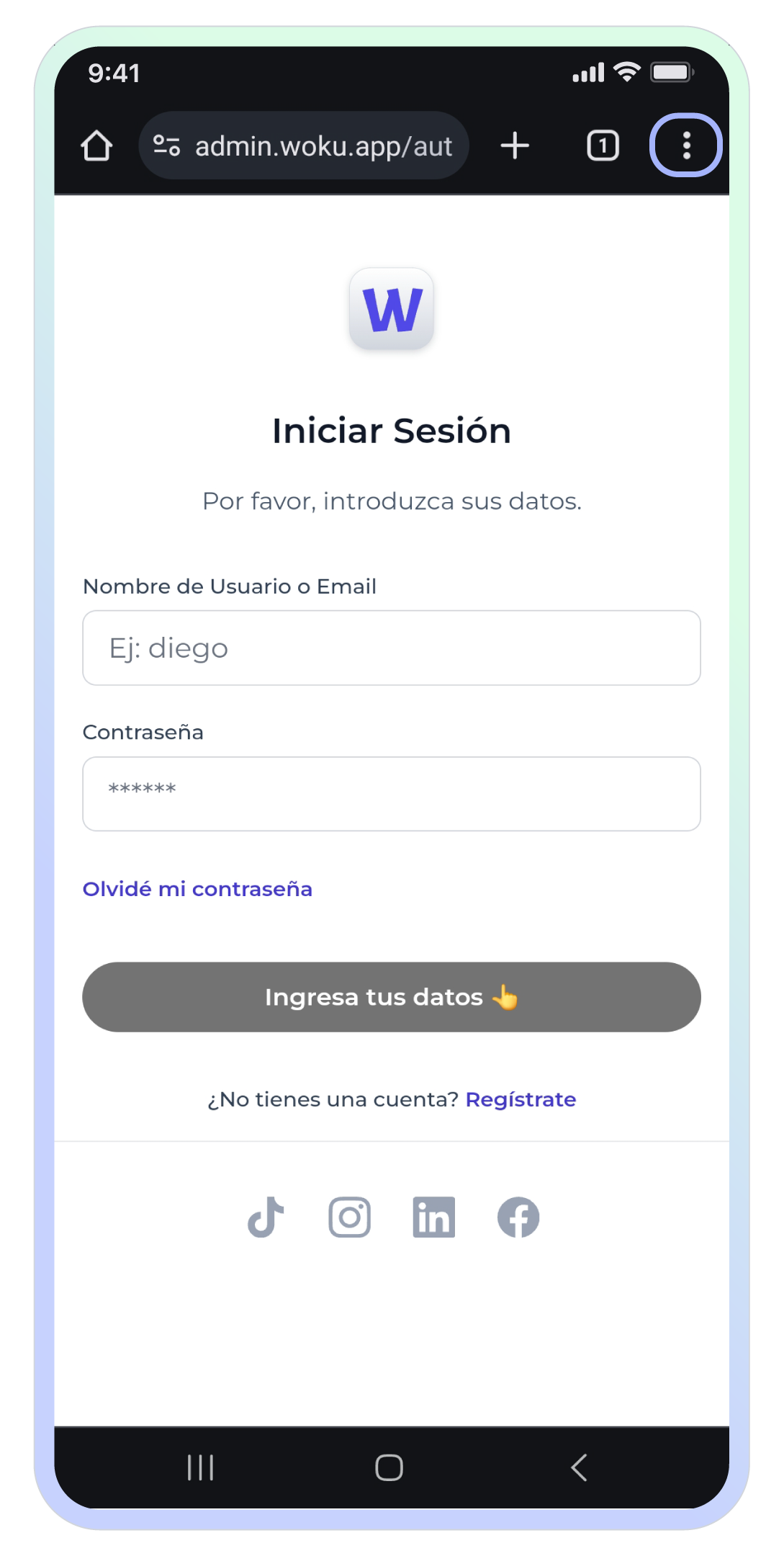
<img style={{ width: 'auto', height: '400px'}} src="https://mintcdn.com/woku/4zVAR1XAPSMsEpMD/images/android-chrome-login.png?fit=max&auto=format&n=4zVAR1XAPSMsEpMD&q=85&s=eed1730d49cce45611fa352e355bb1d7" alt="woku sign-in screen from an Android device using the Google Chrome browser. The address bar shows 'admin.woku.app/auth', with the three dots icon (options menu) highlighted in the top right corner. The sign-in screen asks for the username or email and the password, with a 'Forgot my password' button and another button to enter the details. At the bottom, there are links to social media such as TikTok, Instagram, LinkedIn, and Facebook, and a link to sign up if you do not have an account." className="mx-auto" width="1089" height="2160" data-path="images/android-chrome-login.png" />

<div style={{ textAlign: 'center', fontSize: '0.875rem', color: '#6b7280' }}><strong>woku sign-in interface from an Android device with the Google Chrome options menu highlighted</strong></div>

Once in the menu, scroll down and select the "**Add to Home screen**" option.
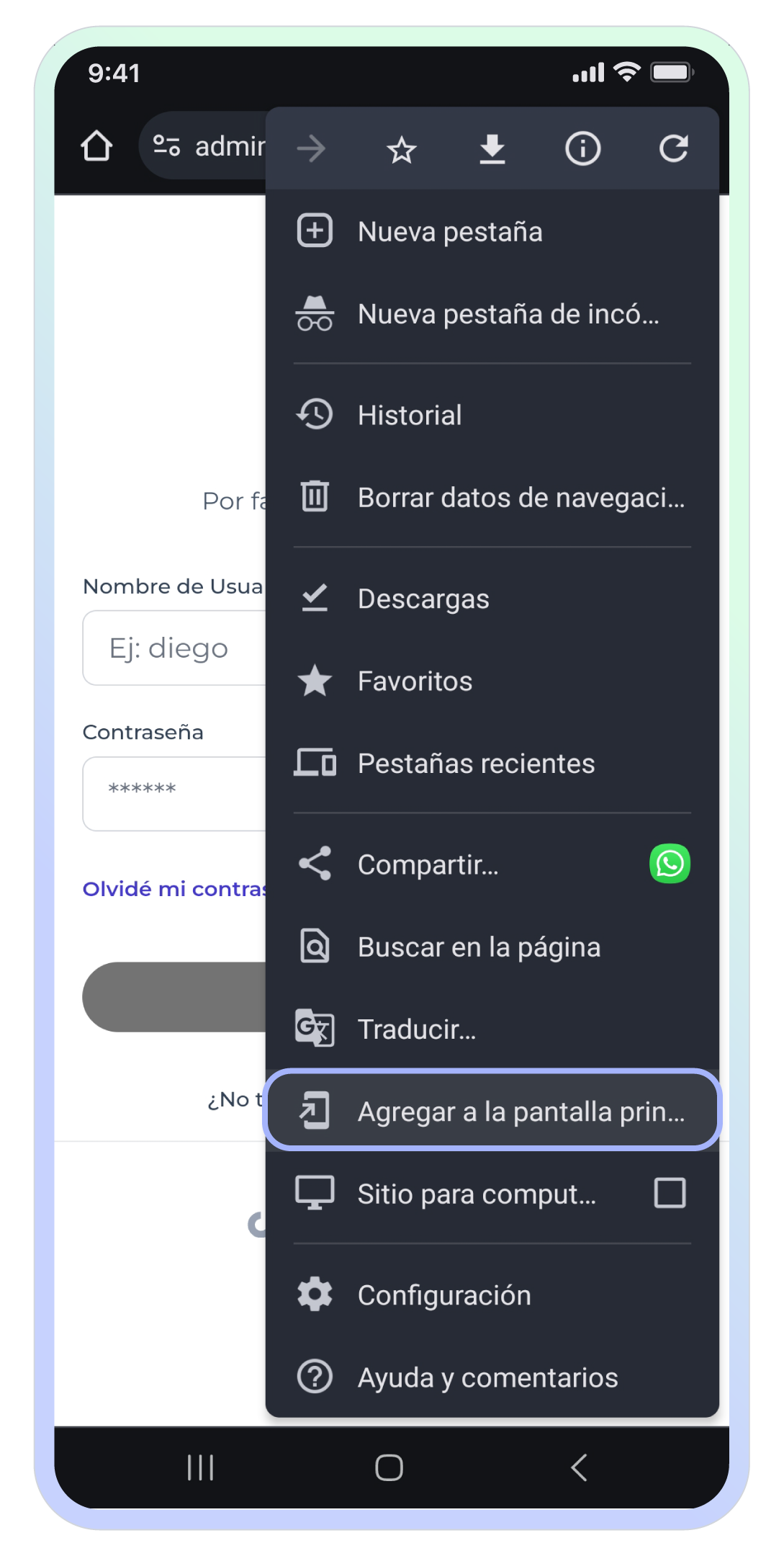
<img style={{ width: 'auto', height: '400px'}} src="https://mintcdn.com/woku/4zVAR1XAPSMsEpMD/images/android-menu.png?fit=max&auto=format&n=4zVAR1XAPSMsEpMD&q=85&s=5d755ff6e6728b02b7815504cc3b7cb1" alt="Screen on an Android device showing the Google Chrome options menu, which has been opened after selecting the three dots in the top right corner. The 'Add to Home screen' option is highlighted, which lets you create a shortcut to the web app. Other options visible in the menu include 'New tab', 'History', 'Downloads', 'Bookmarks', 'Find in page', and 'Settings'." className="mx-auto" width="1089" height="2160" data-path="images/android-menu.png" />

<div style={{ textAlign: 'center', fontSize: '0.875rem', color: '#6b7280' }}><strong>"Add to Home screen" option highlighted in the Google Chrome options menu on Android</strong></div>

Then, in the bottom sheet, select the "**Install**" option.
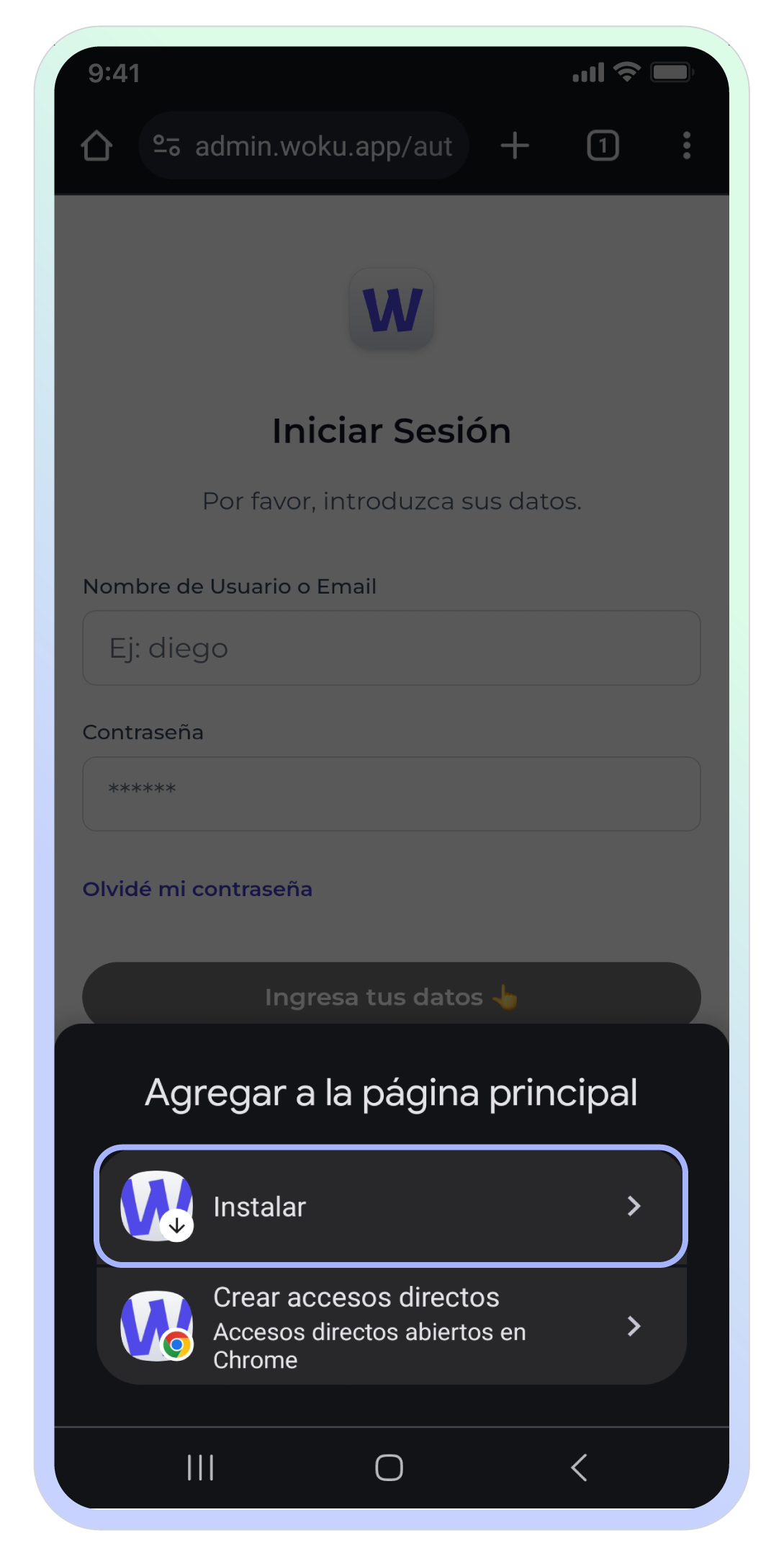
<img style={{ width: 'auto', height: '400px'}} src="https://mintcdn.com/woku/4zVAR1XAPSMsEpMD/images/android-bottom-sheet.png?fit=max&auto=format&n=4zVAR1XAPSMsEpMD&q=85&s=681db8adfb950da5c55934a8cee46f0f" alt="Screen on an Android device showing a bottom sheet at the bottom with two options: 'Install', which lets you add woku to the device's home screen, and 'Create shortcuts', which creates shortcuts that open in Google Chrome. The 'Install' option is selected and highlighted, letting you add the woku web app to the home screen." className="mx-auto" width="1089" height="2160" data-path="images/android-bottom-sheet.png" />

<div style={{ textAlign: 'center', fontSize: '0.875rem', color: '#6b7280' }}><strong>"Install" option selected to add woku to the home screen on Android</strong></div>

Finally, in the modal, select "**Install**".
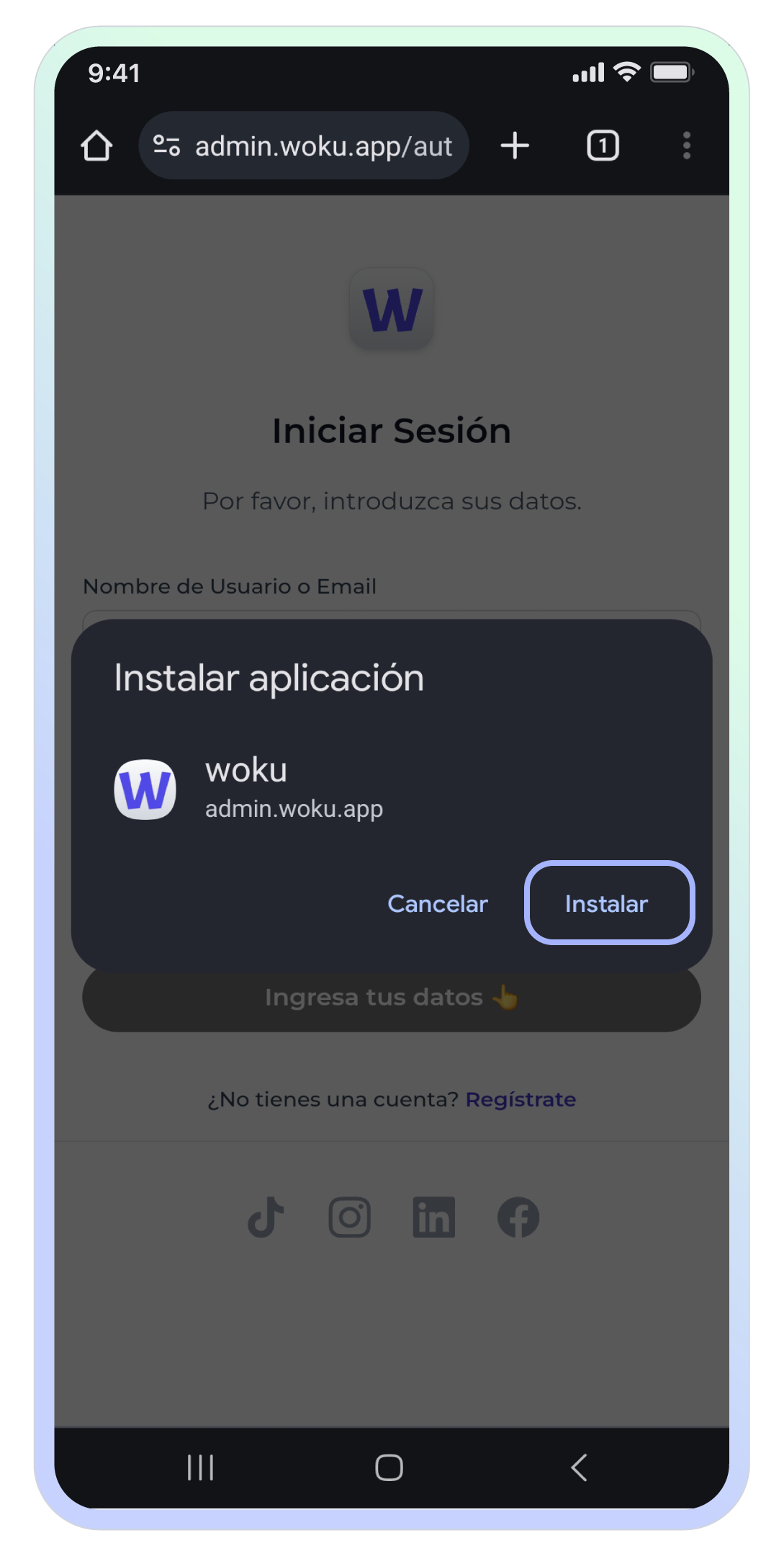
<img style={{ width: 'auto', height: '400px'}} src="https://mintcdn.com/woku/4zVAR1XAPSMsEpMD/images/android-install-modal.png?fit=max&auto=format&n=4zVAR1XAPSMsEpMD&q=85&s=056c016457534746815b28ae520c60c7" alt="Screen on an Android device showing a pop-up modal to install the woku web app from Google Chrome. The modal contains two options: 'Cancel' to exit the installation process and 'Install' to add woku as an app to the device's home screen. The 'Install' option is highlighted, letting you proceed with the installation. The app name is 'woku' and the corresponding URL is 'admin.woku.app'." className="mx-auto" width="1089" height="2160" data-path="images/android-install-modal.png" />

<div style={{ textAlign: 'center', fontSize: '0.875rem', color: '#6b7280' }}><strong>woku installation modal on Android from Google Chrome</strong></div>
